How to Install Raspberry Pi OS on an SD Card#
Materials Needed:#
Raspberry Pi 4 (minimum 4GB RAM, 8GB recommended)
MicroSD Card (Samsung PRO Endurance, 64GB recommended)
MicroSD Card reader
Instructions:#
1. Download Raspberry Pi Imager#
Visit the Raspberry Pi Imager download page.
Download and install the software for your operating system (Windows, macOS, or Linux).
Note
These instructions are for Raspberry Pi Imager version 2.0 or later.
2. Prepare the SD Card#
Insert your MicroSD card into the card reader and connect it to your computer.
3. Launch Raspberry Pi Imager#
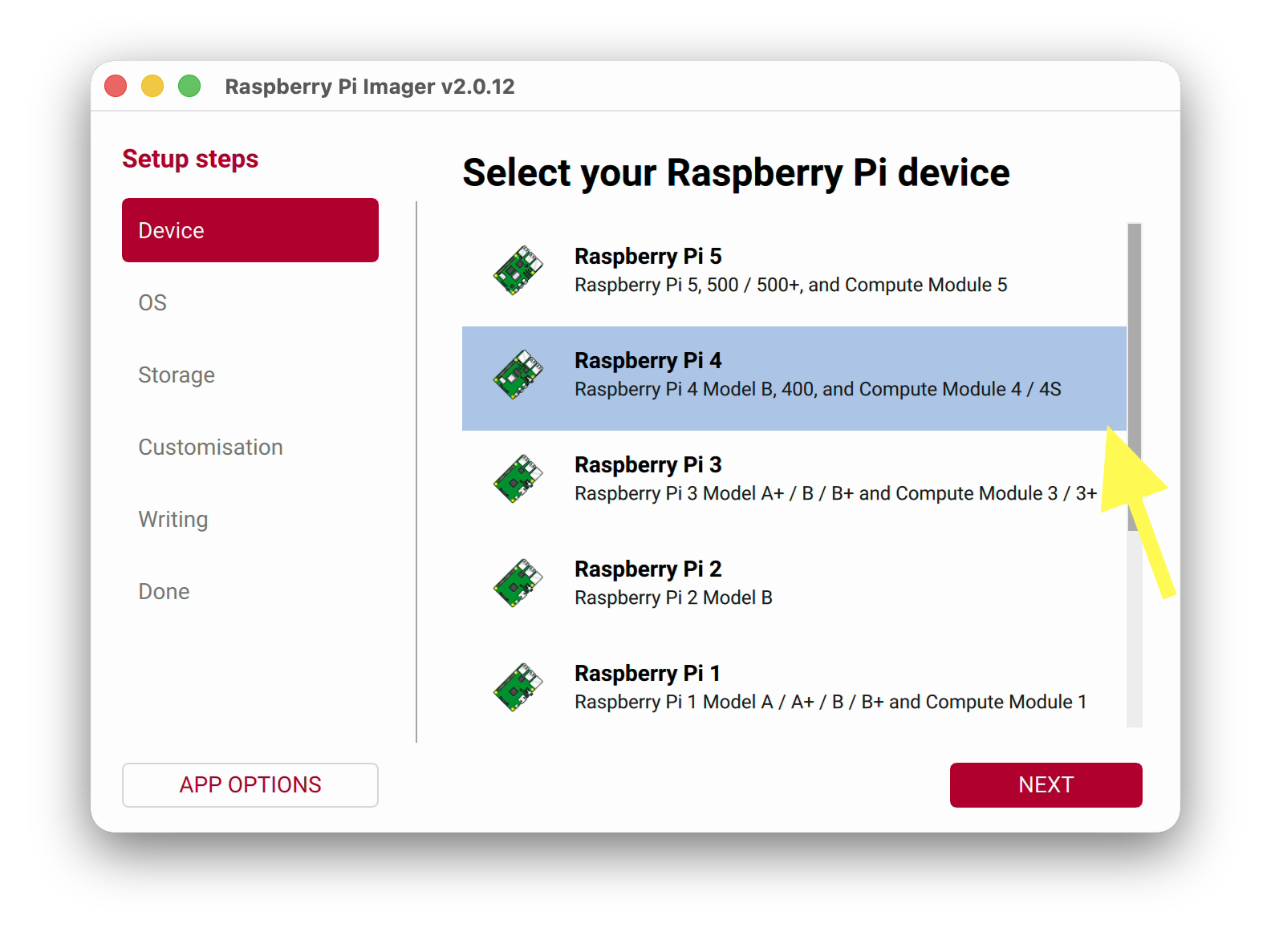
Open the Raspberry Pi Imager application. Imager walks you through each set-up step in order: Device, OS, Storage, Customisation, Writing, and Done.
4. Select the Device#
Select Raspberry Pi 4, then click NEXT.
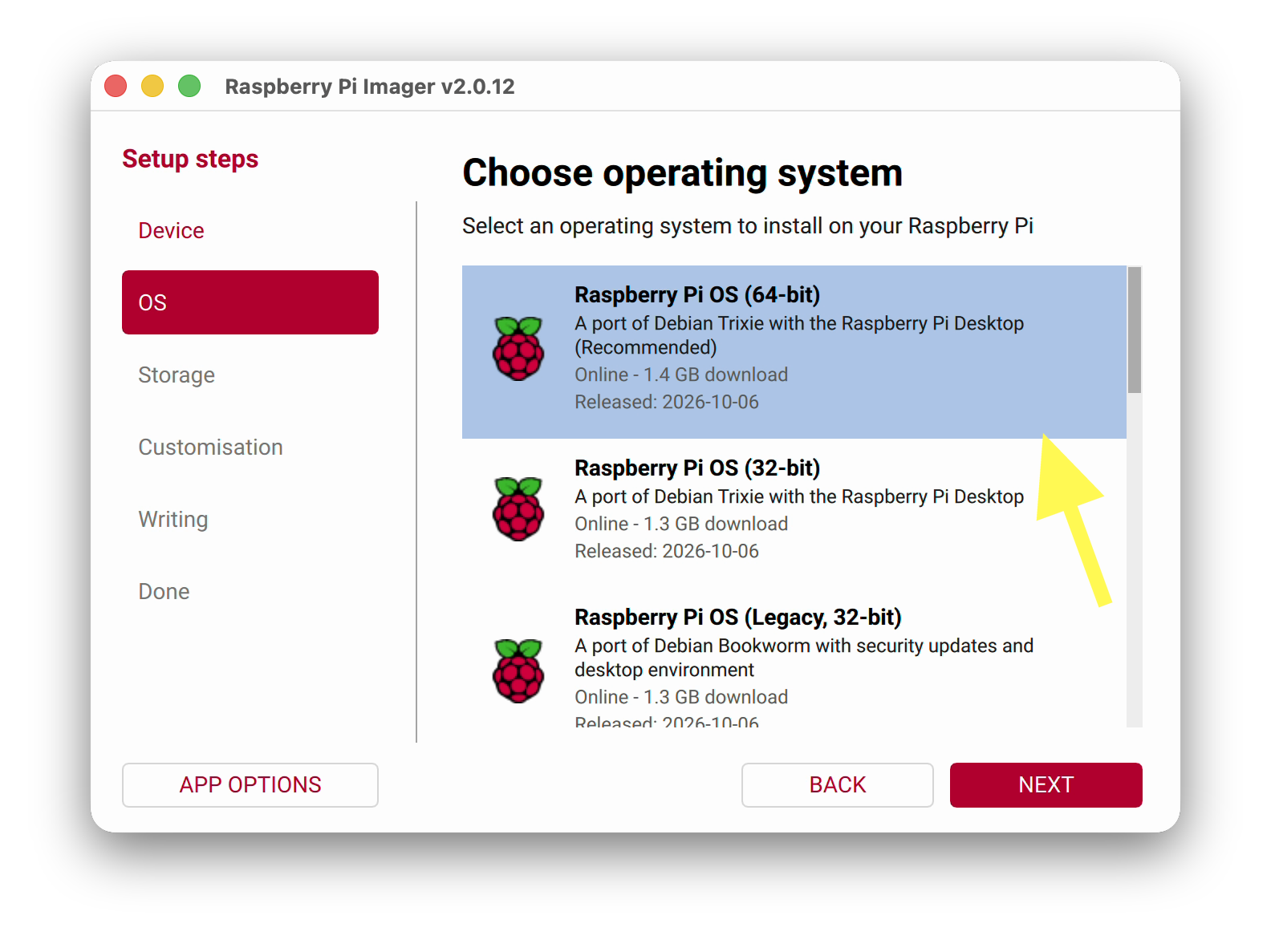
5. Select the OS#
Select Raspberry Pi OS (64-bit), then click NEXT.
6. Select the Storage#
Select your MicroSD card from the list, then click NEXT.
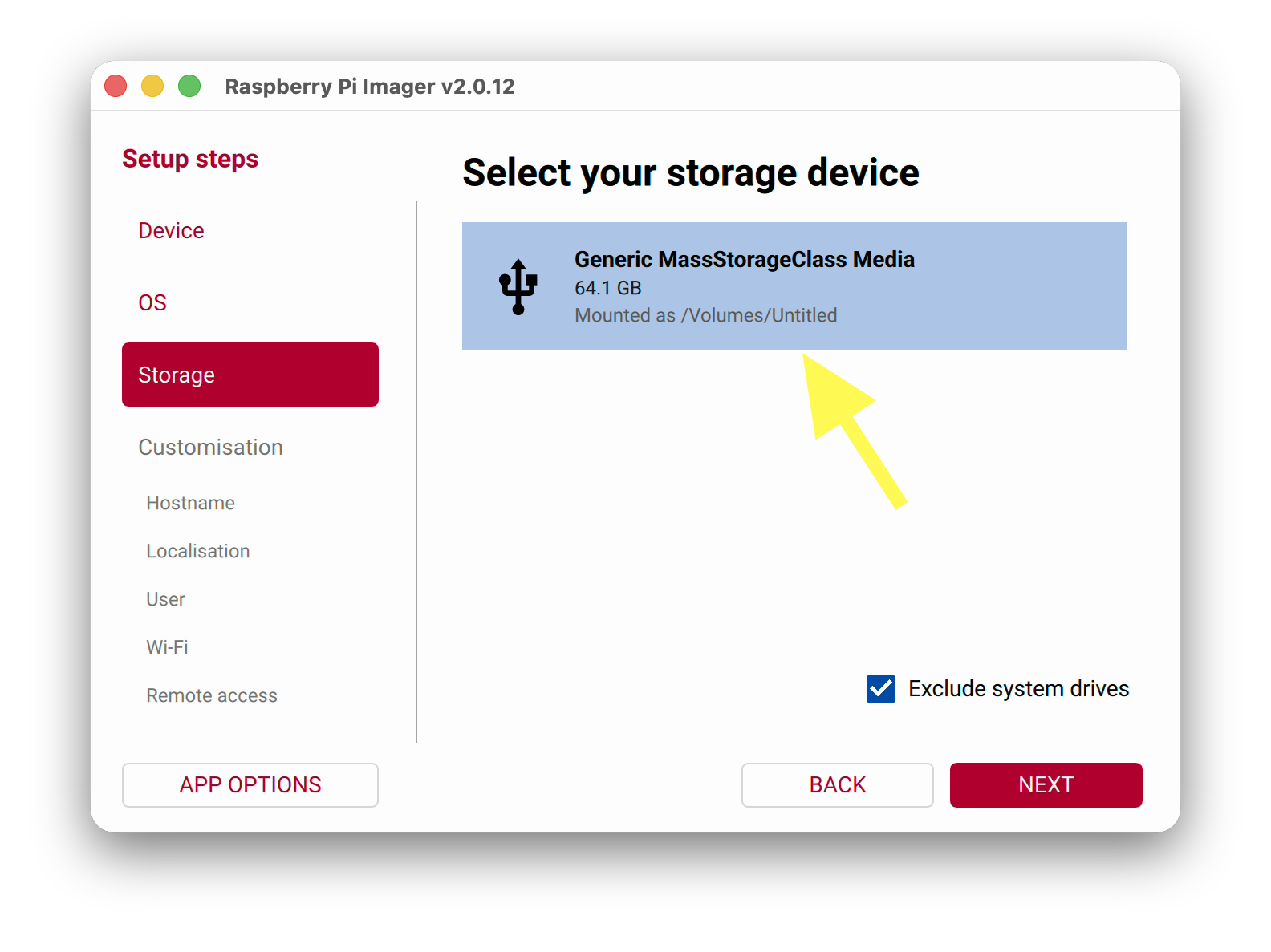
Note
Leave “Exclude system drives” checked, so you can’t accidentally erase your computer’s own drive.
7. Customise the OS#
Imager now walks you through the customisation settings, one screen at a time. Click NEXT after each one.
7a. Hostname#
Set the hostname to valet-vision, valet-link, (or some other preferred name).
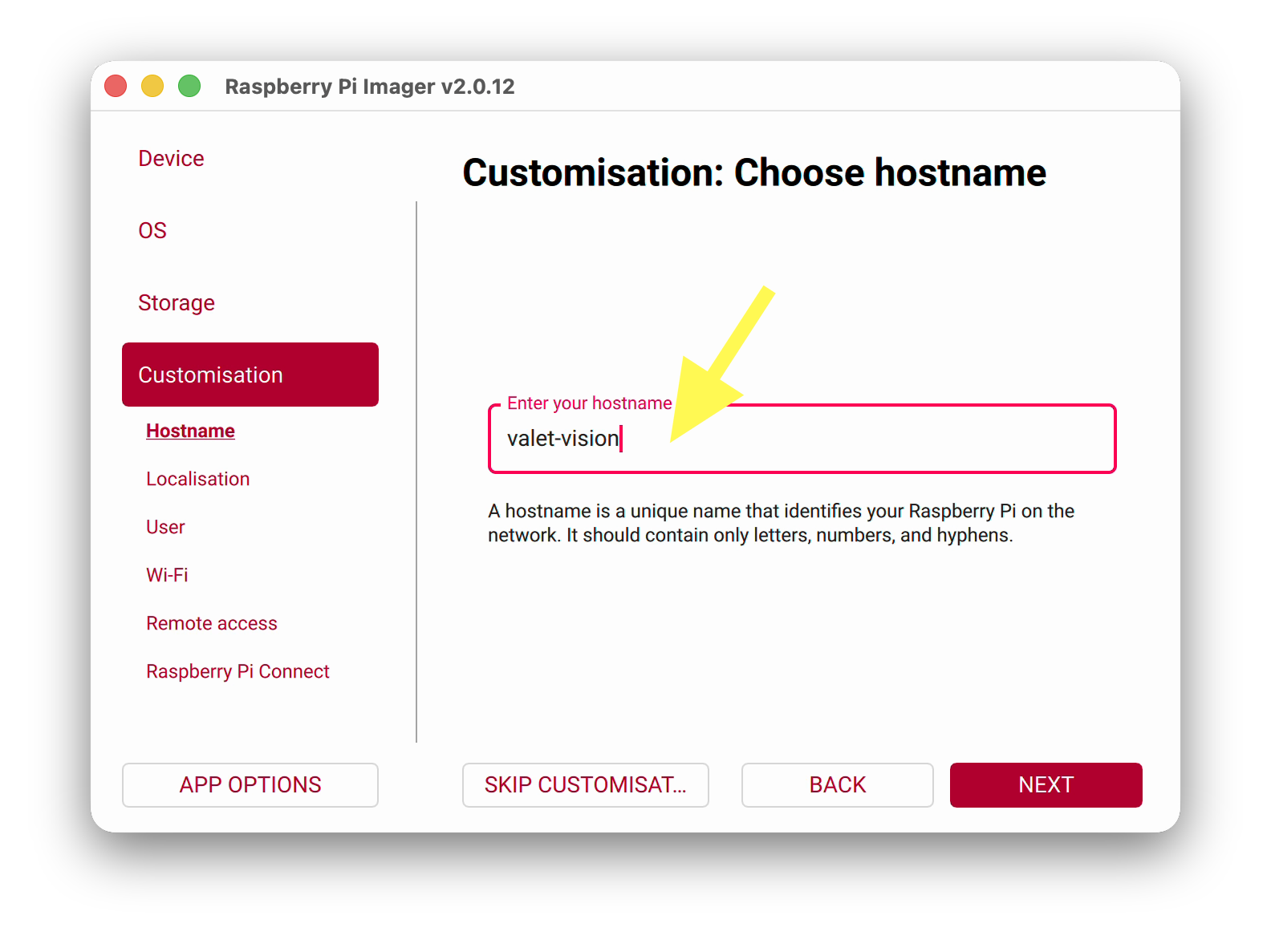
Note
If you will have more than one Valet on your network, we recommend adding a number after the hostname (e.g. “valet-vision-34”).
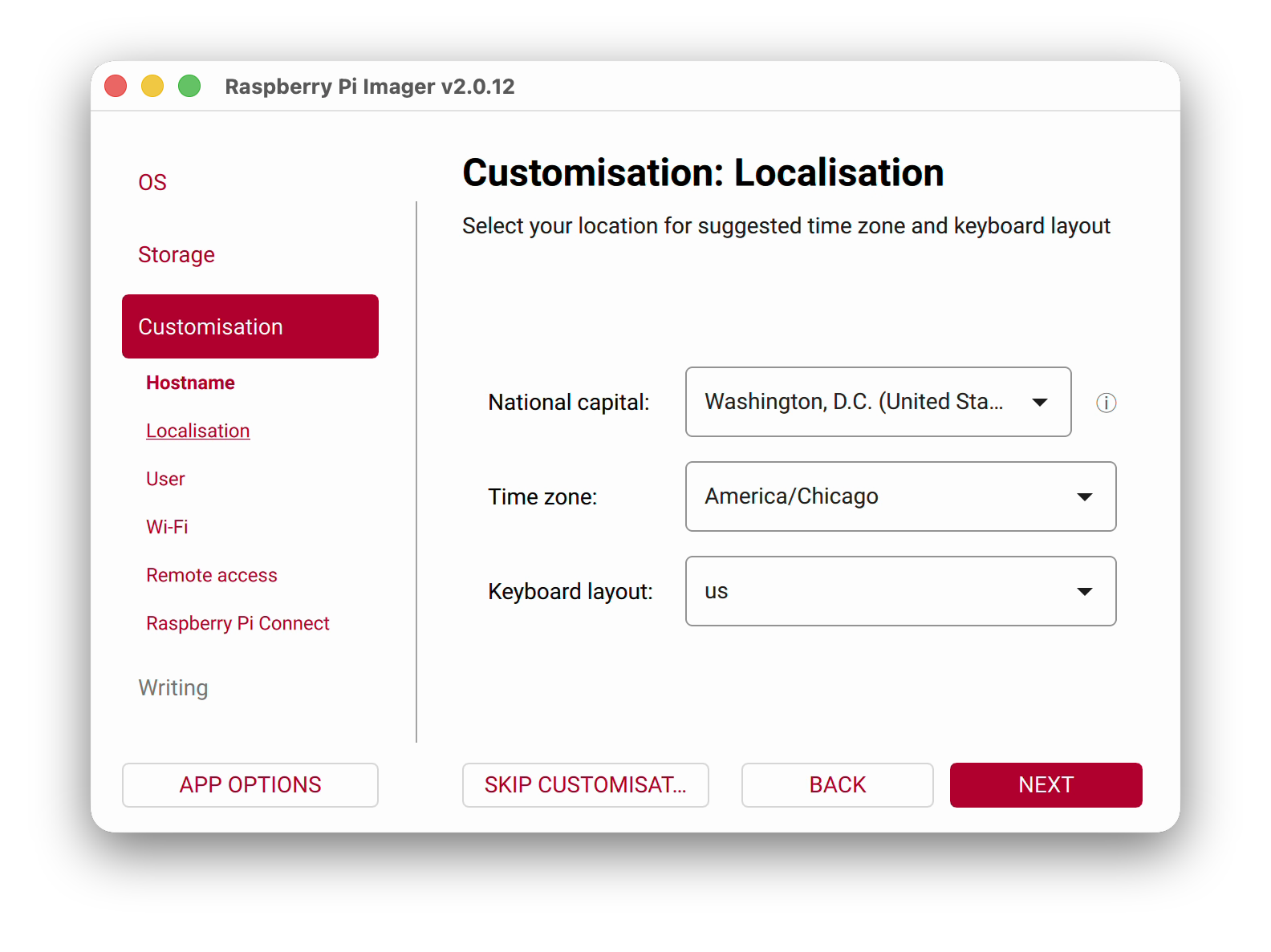
7b. Localisation#
(Optional) Set your time zone and keyboard layout.
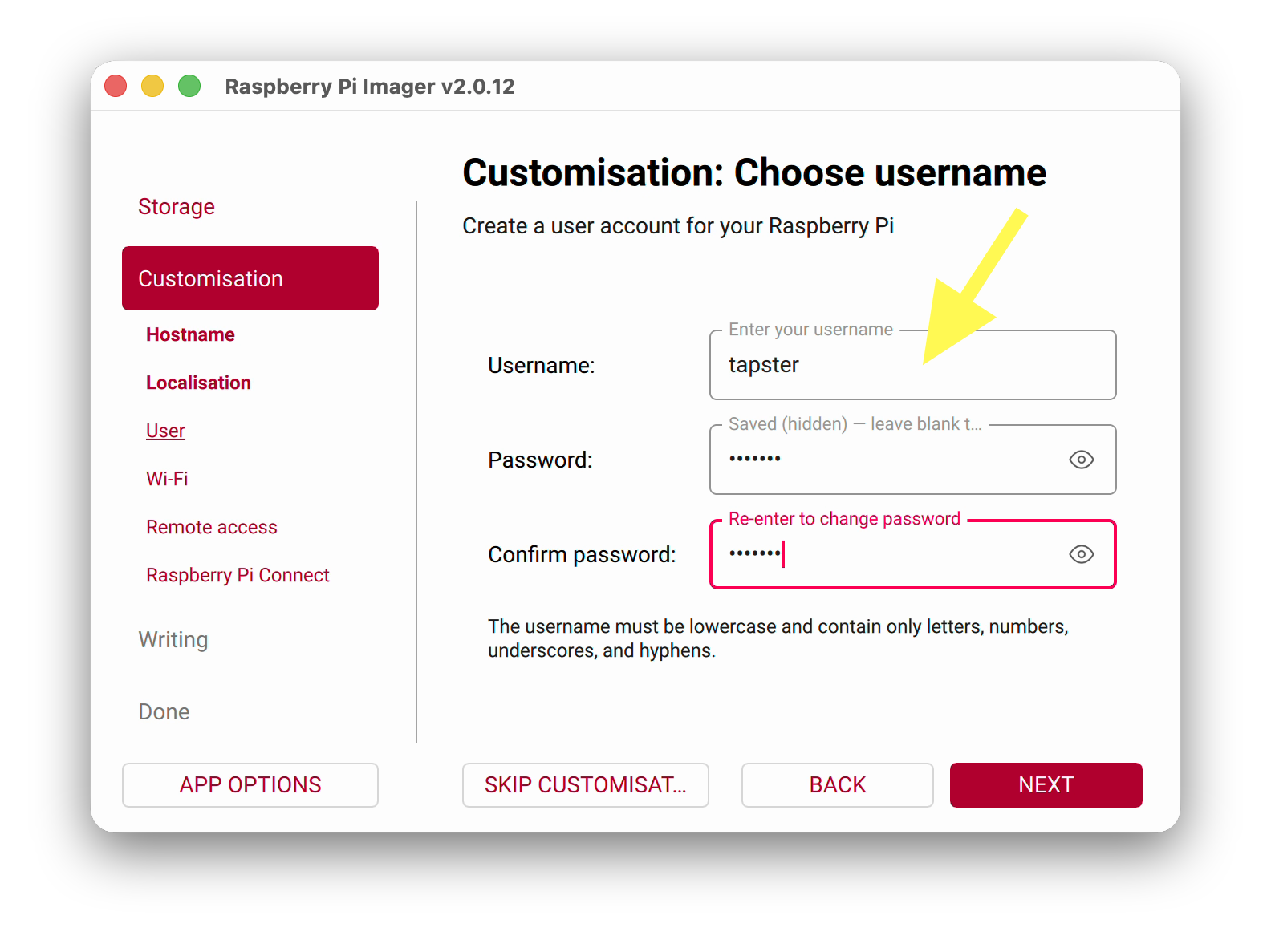
7c. User#
Set the username to tapster.
Enter a password, then enter it again to confirm it. Store it somewhere safe, like a password manager.
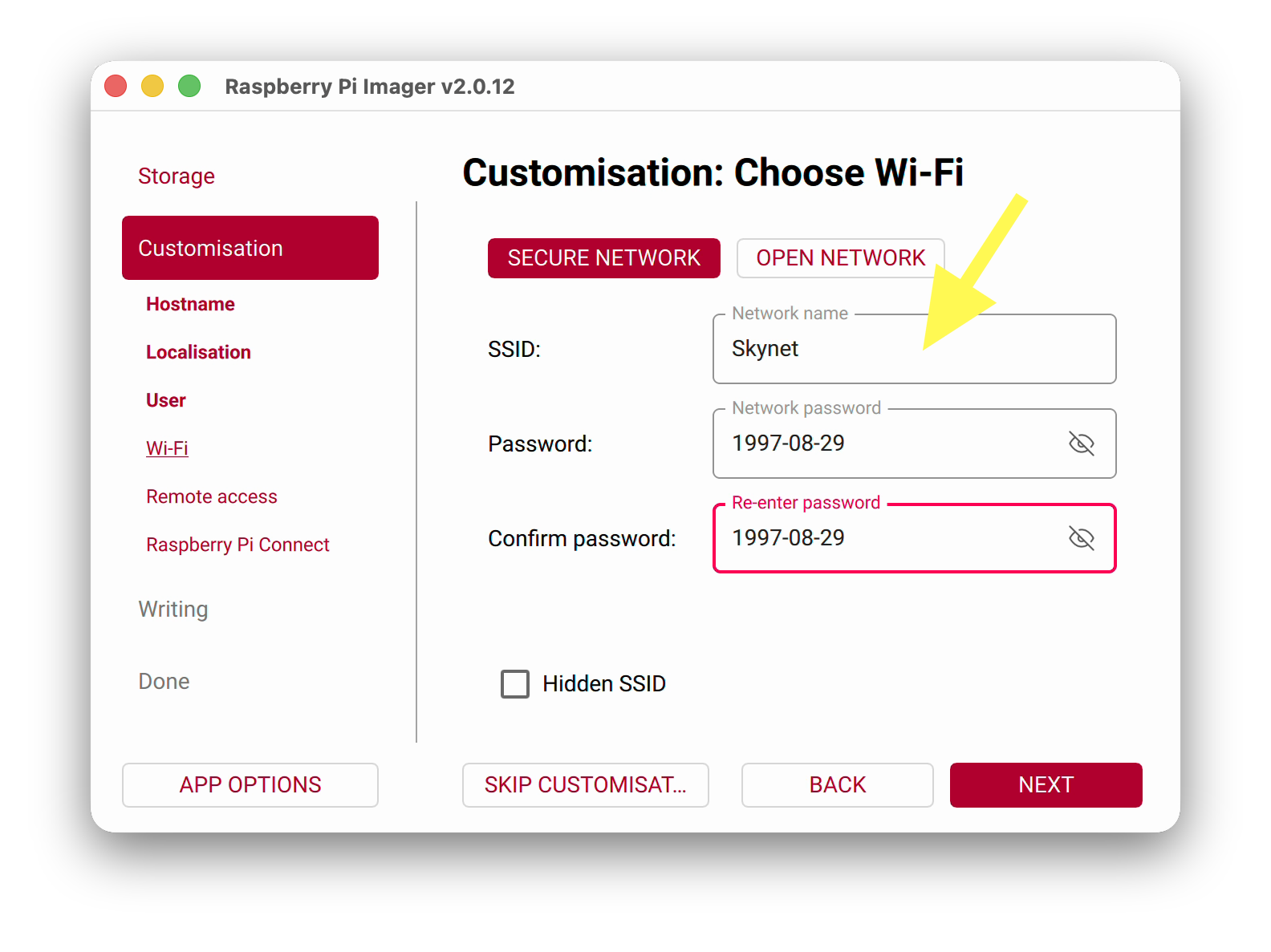
7d. Wi-Fi#
If you’ll be using a wireless network connection with your Valet, enter the SSID (network name) and Wi-Fi password. However, if you’ll be using a wired network connection, then leave the Wi-Fi fields blank.
Note
On macOS, Imager may offer to fill in the Wi-Fi password from your system keychain. Click NO unless you want Valet to join the same Wi-Fi network as your computer.
Note
In the default installation, we do not set Wi-Fi credentials here with Raspberry Pi Imager; instead, we use Comitup to bootstrap Wi-Fi support. However, the use of Comitup is configurable, and can be disabled when the system set-up scripts are run in a later step. If you really would rather set up Wi-Fi here, though, go for it!
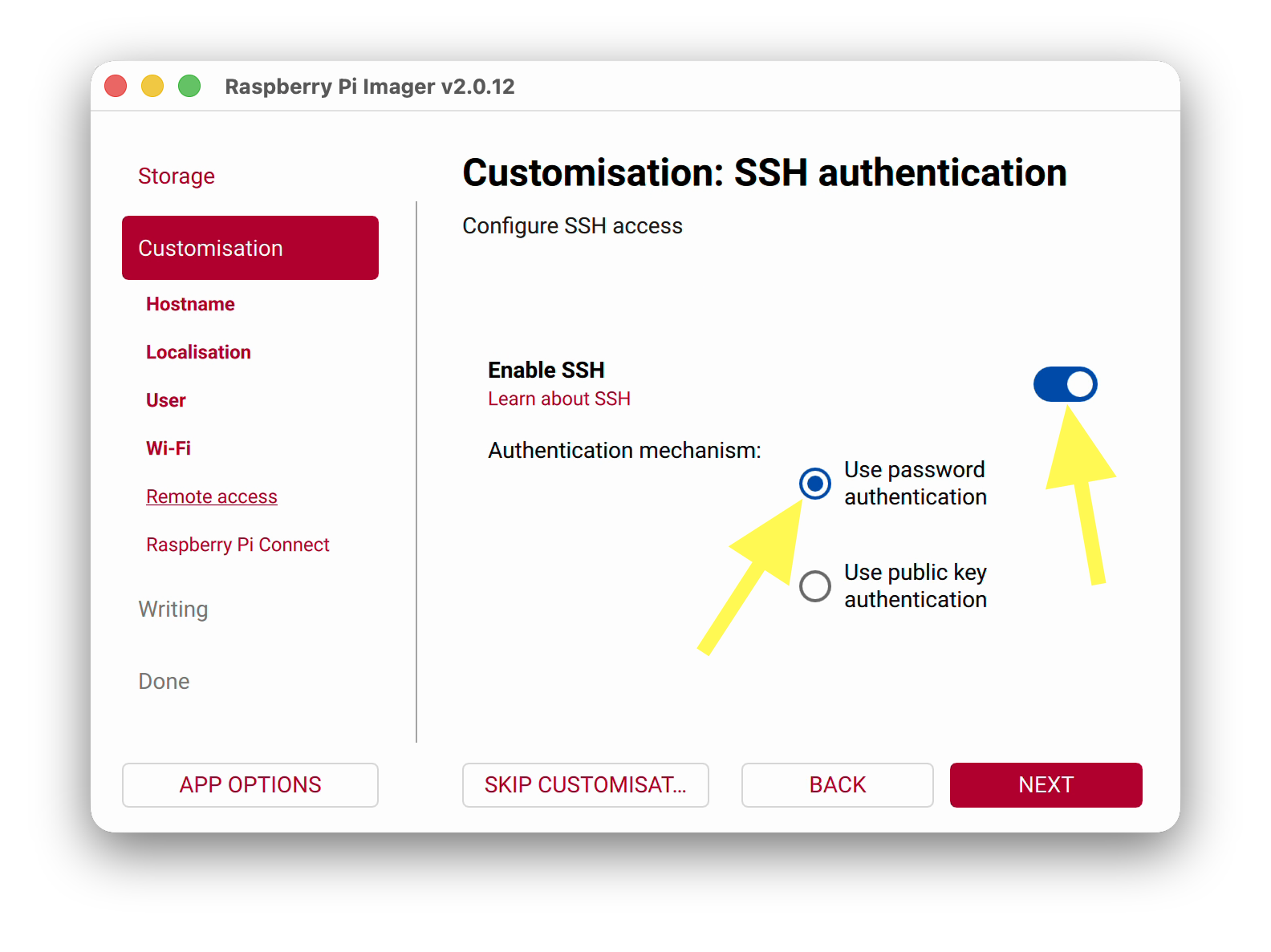
7e. Remote Access#
Turn on Enable SSH and select Use password authentication.
Note
You can also enable key-based authentication later after logging into Valet.
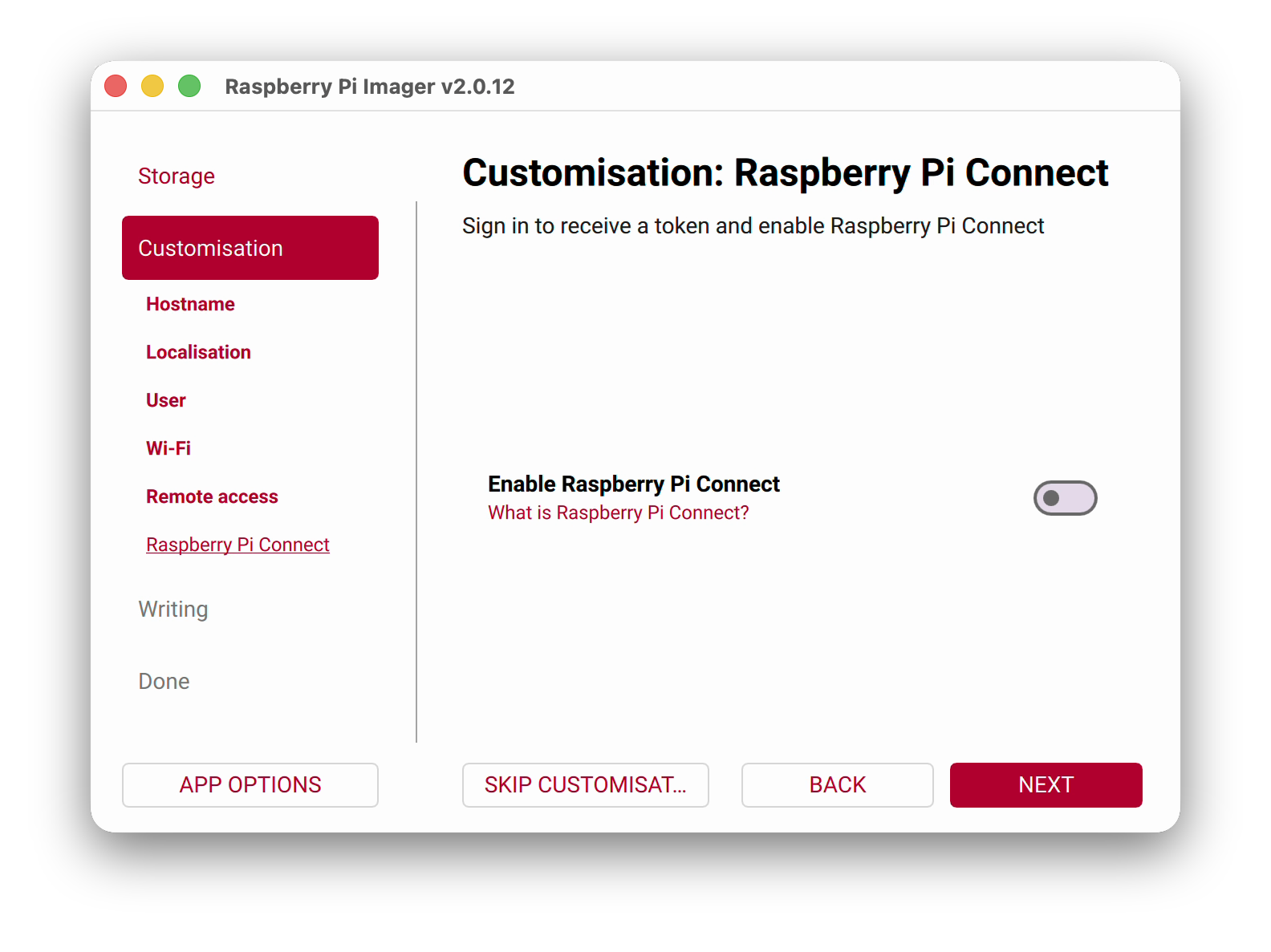
7f. Raspberry Pi Connect#
Leave Enable Raspberry Pi Connect turned off.
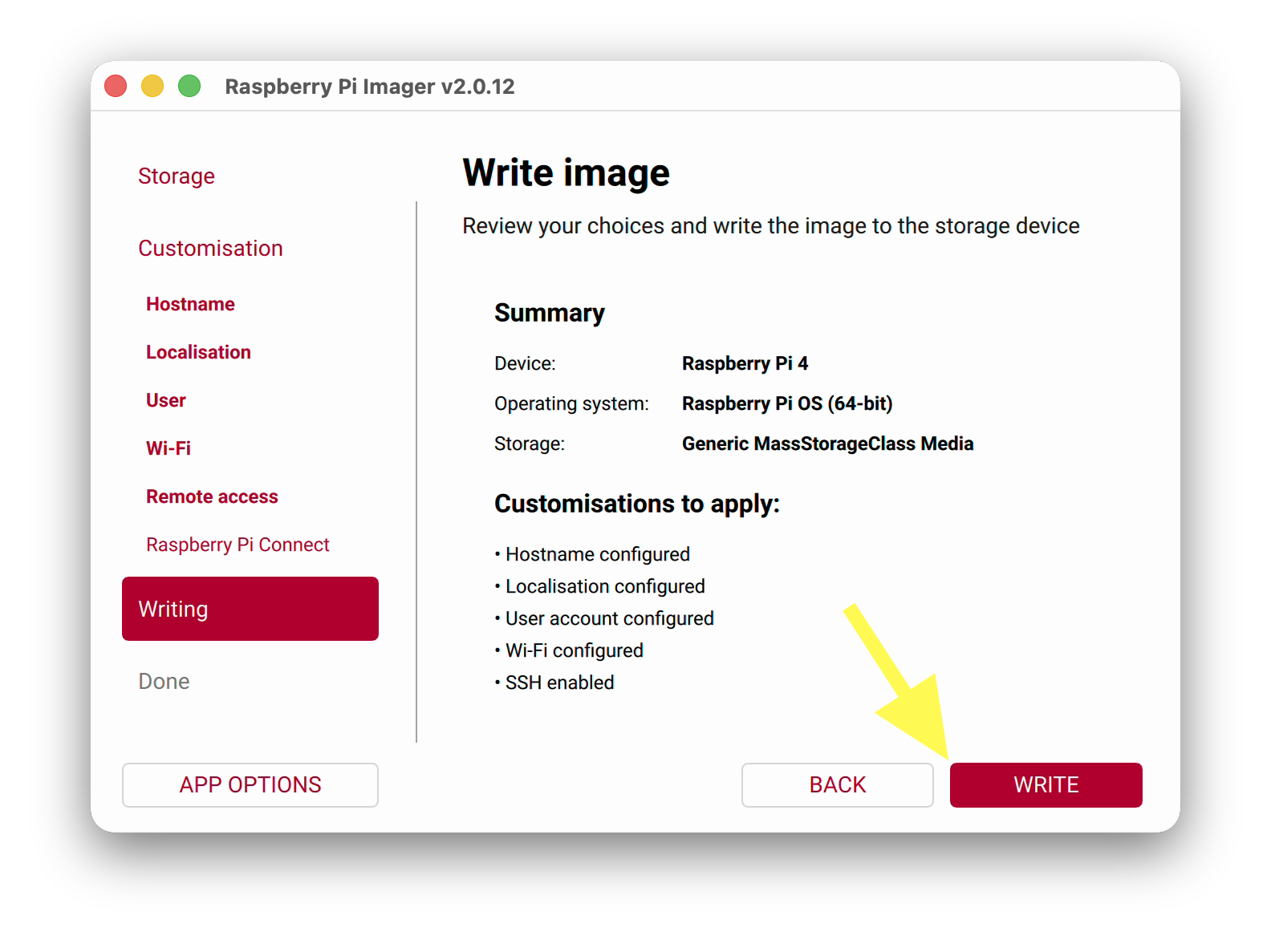
8. Write the OS to the SD Card#
Review the summary of your choices, then click WRITE.
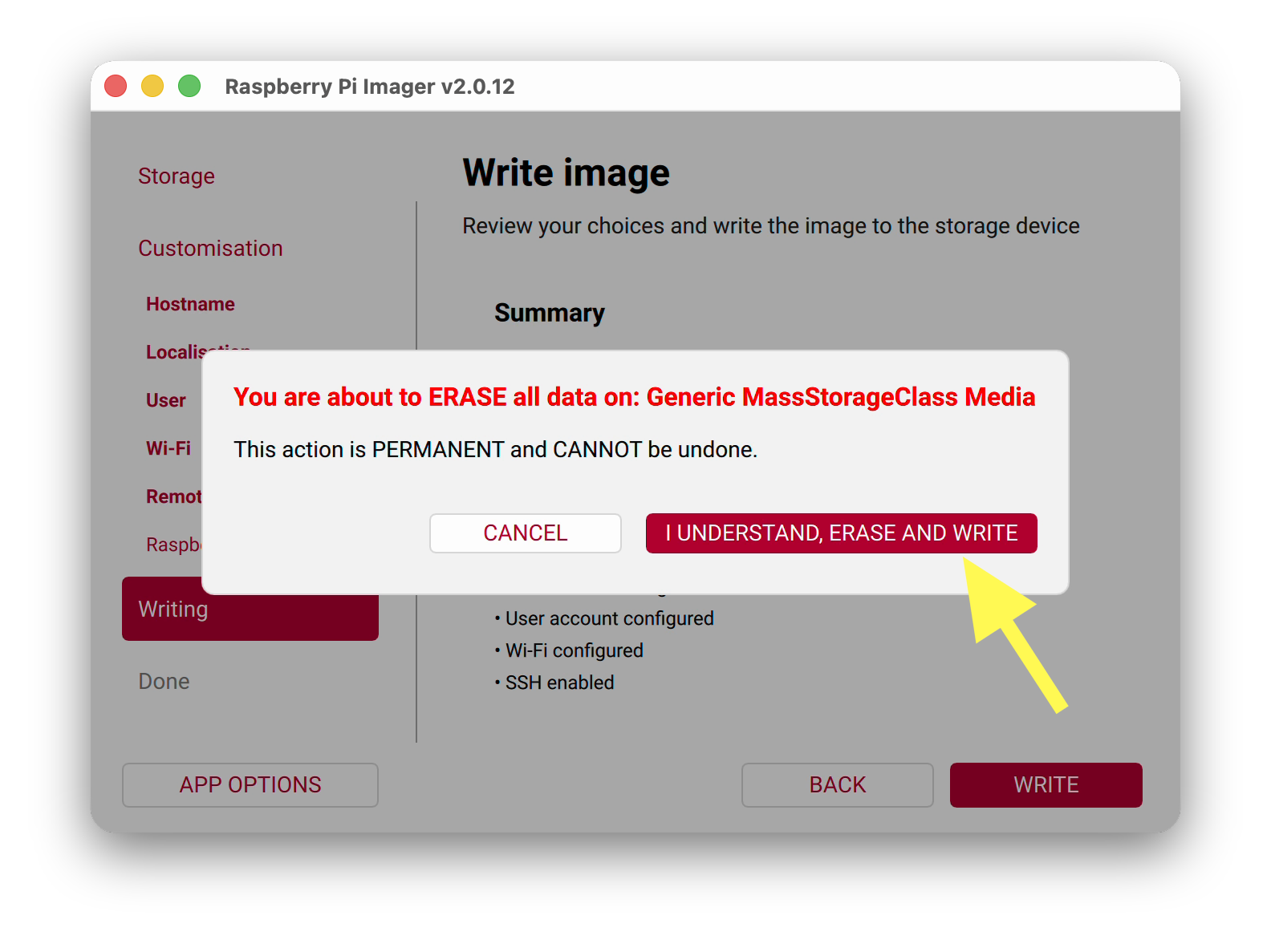
When warned that all data on the SD card will be erased, click I UNDERSTAND, ERASE AND WRITE.
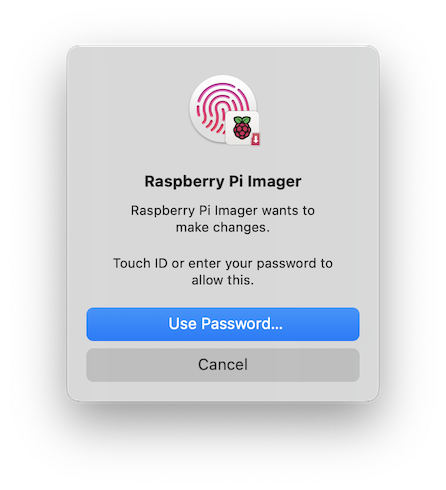
If you’re shown an admin prompt, grant the Imager permission to continue.
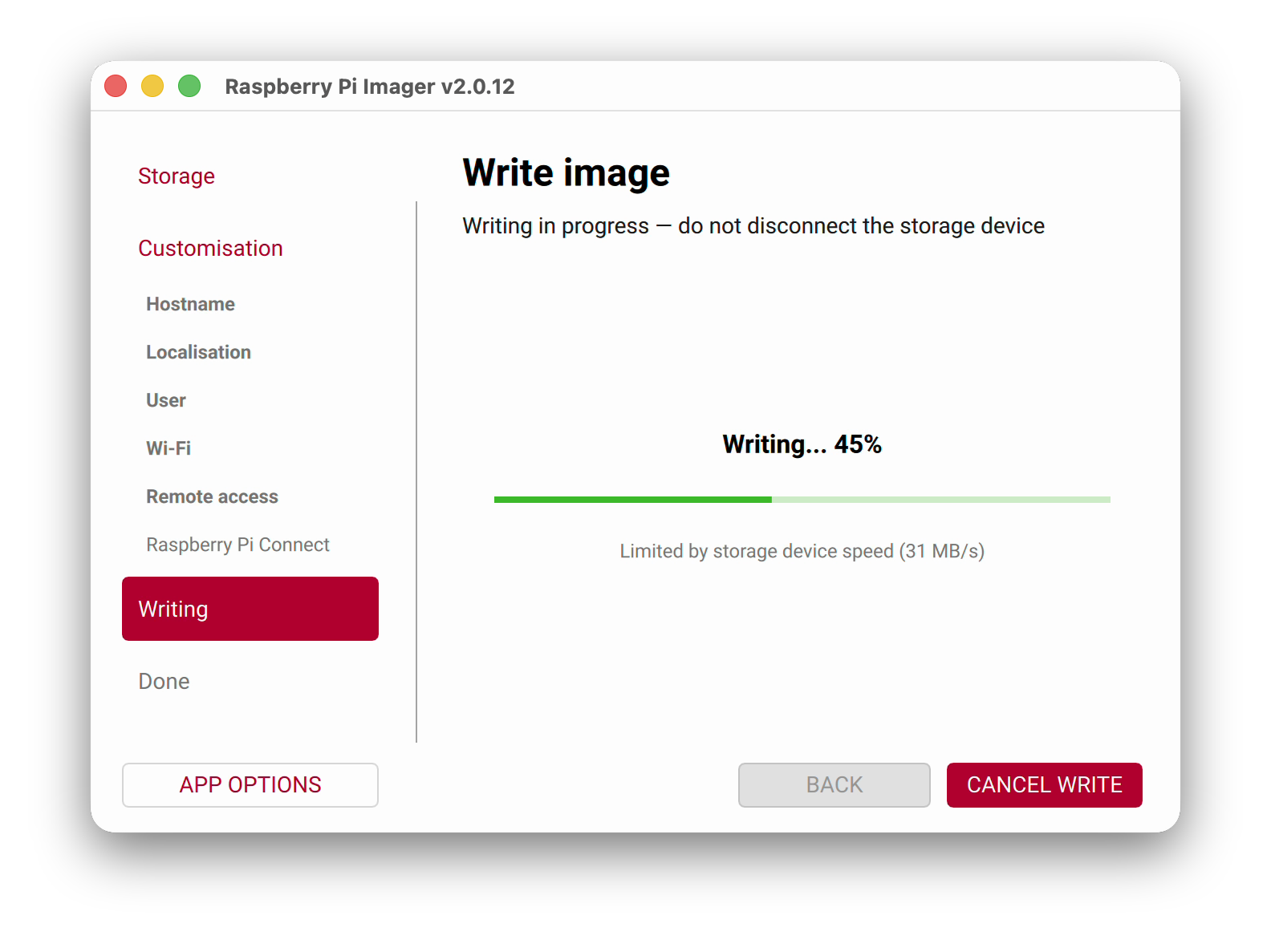
Wait for the writing and verifying process to complete; this may take a few minutes.
9. Remove the SD Card#
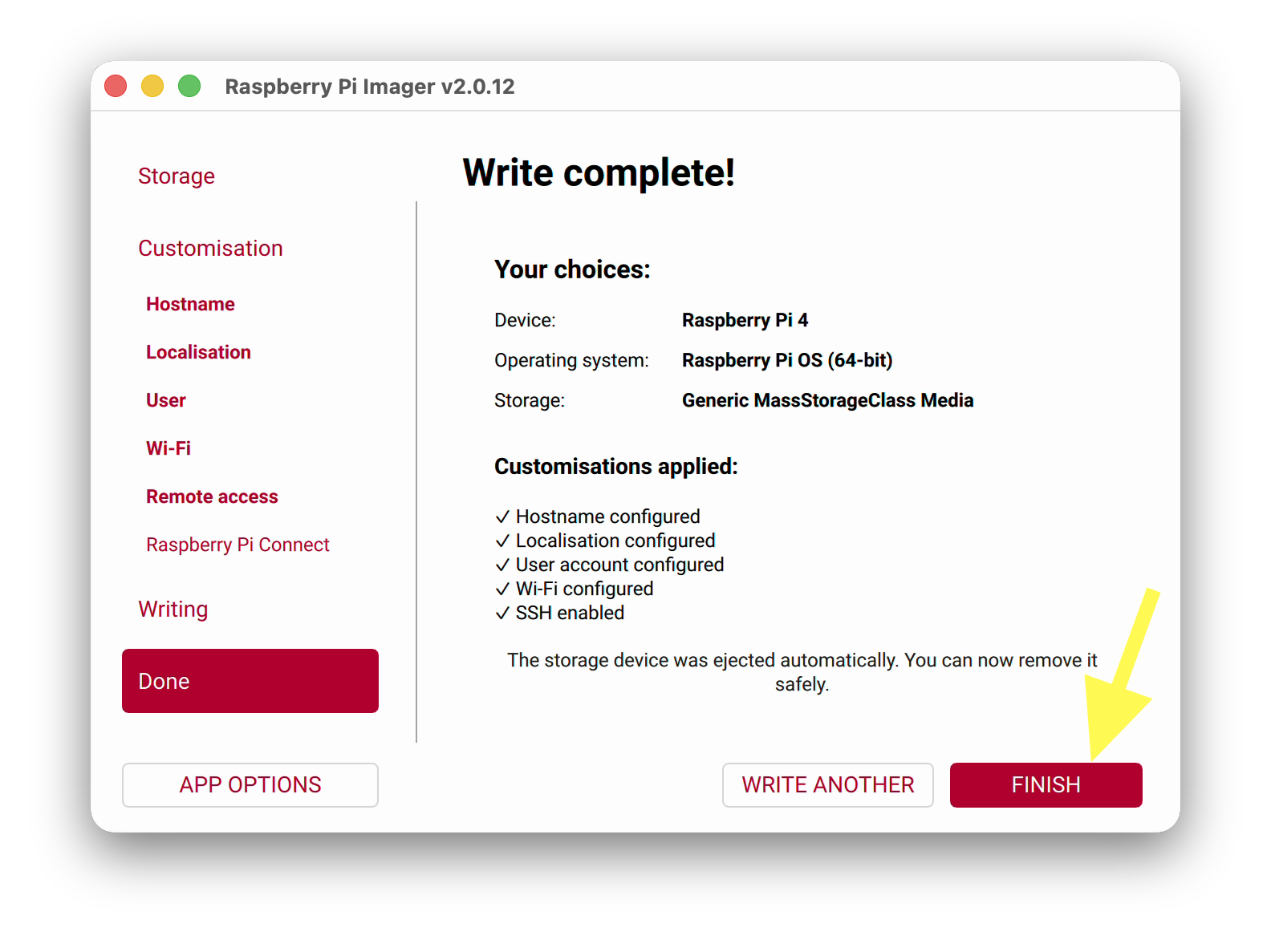
When the write is complete, Imager ejects the SD card automatically. Click FINISH and remove the SD card from your computer.
10. Boot Up Your Valet#
Insert the MicroSD card into the Valet’s Raspberry Pi.
(Optional) If no wireless connection was configured, connect a wired network cable to the Valet.
Connect the Valet to a power supply.
🎉 Well done!#
Well, almost! Your Valet’s Raspberry Pi is now running Raspberry Pi OS, but next we need to install Valet specific software.